Showing posts with label software. Show all posts

Saturday, August 7, 2010

Convert docx doc, open xlsx pptx

Microsoft Office 2007 and newer saves its files in a different format. In order to open them on Office 2003 and below, you will have to download a free special file converter from Microsoft. If you are using a Mac user, don't worry. You can get a free Mac file converter too.

Word 2007+
Extension
Document .docx
Macro-enabled document .docm
Template .dotx
Macro-enabled template .dotm
Excel 2007+
Extension
Workbook .xlsx
Macro-enabled workbook .xlsm
Template .xltx
Macro-enabled template .xltm
Non-XML binary workbook .xlsb
Macro-enabled add-in .xlam
PowerPoint 2007+ Extension
Presentation .pptx
Macro-enabled presentation .pptm
Template .potx
Macro-enabled template .potm
Macro-enabled add-in .ppam
Show .ppsx
Macro-enabled show .ppsm
Slide .sldx
Macro-enabled slide .sldm
Office theme .thmx

Monday, May 3, 2010

Microsoft word data for speech recognition was lost

Microsoft Word has an annoying bug that displays the following error message when you try to save a document:

The document was saved, but data for speech recognition was lost because there was not enough space to store it. Be sure to turn off the microphone when not recording and check the available storage space on disk.

文書は保存されましたが、音声認識データを保存する十分な空き領域がないため、データは失われました。録音していないときは、必ずマイクをオフに し、ディスクで利用できる記憶域を確認してください。

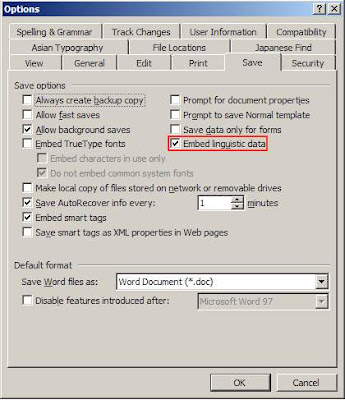
The solution is to turn off a setting named “Embed Linguistic Data” /”言語データを埋め込む(U)”.


To fix a specific document

1. Open the Word document that you want to fix.

2. Go to Tools > Options > Save

3. Untick the option: “Embed Linguistic Data”


4. Click OK

The error message will not show up for this document again.


To fix this permanently for new documents

1. Close Microsoft Word.

2. Open “My Computer”.

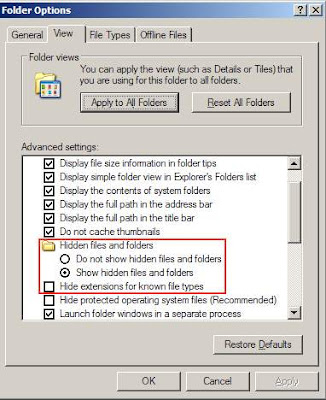
3. Go to Tools > “Folder Options” > View.

4. Ensure that you have selected “Show hidden files and folders”

5. Untick “Hide extensions for known file types”


6. Click OK

7. Hold down the Control (Ctrl) key. Keep holding it down as you double-click on the Microsoft Word icon. This will open Microsoft Word in Safe Mode.

8. You will get a confirmation message asking if you want to open Word in Safe Mode. Click OK.

9. Go to Start > Search > “For Files or Folders”

10. Click on “All files and folders”

11. Click on “More advanced options”

12. Ensure that “Search hidden files and folders” and “Search subfolders” are ticked
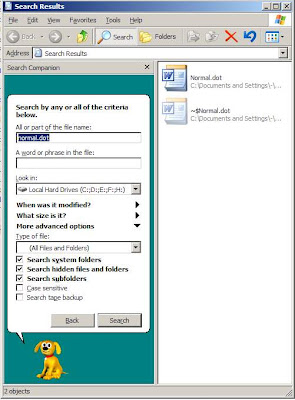


13. Under “All or part of file name”, type: normal.dot

14. Click on the Search button

15. When you see the file, doubleclick to open it.

16. In Microsoft Word, go to Tools > Options > Save

17. Untick the option: “Embed Linguistic Data”


18. Click OK

19. Save the document and close Microsoft Word

20. The problem should not affect any new documents again

Note: Old documents must be fixed one by one. There is no known way to fix them automatically.

Wednesday, December 3, 2008

System.Runtime.InteropServices.COMException: Class not registered

After installing the Classroom Performance System software on 32 bits Windows XP, I encountered the following error message:


CPS encountered an error attempting to initialize the main form.

Exception -- System.Runtime.InteropServices.COMException: Class not registered (Exception from HRESULT: 0x80040154 (REGDB_E_CLASSNOTREG))
Message -- Class not registered (Exception from HRESULT: 0x80040154 (REGDB_E_CLASSNOTREG))
Application Version -- 5.40.1264
Operating System -- Microsoft Windows NT 5.1.2600 Service Pack 2
Document --
Stacktrace --

at ADOX.CatalogClass.Create(String ConnectString)
at EI.DB.Util.UtilADODatabase.CreateDatabase(String sFileName, String sPassword)
at com.einstruction.cps.util.UtilCPSSchema.CreateCPSDatabase(String sFilePathName)
at com.einstruction.cps.middletier.control.DatabaseManager.CreateNewDatabase()
at com.einstruction.cps.middletier.control.DatabaseManager.ExecuteAction(DatabaseManagerAction action, Boolean checkCPSPassword)
at com.einstruction.cps.middletier.control.CPS.ObtainStartupConnection()
at com.einstruction.cps.middletier.control.CPS.startUp()
at com.einstruction.cps.middletier.control.CPS.runCPS()


This occurred because:

1) My computer was upgraded from SP1 to SP2
2) A version of MDAC lower than 2.8 was installed before the upgrade
3) As a result, some MDAC components were not upgraded to version 2.8 or above


The solution was:

1) Download MDAC_TYP_281.EXE
2) Extract MDAC into a temporary directory

2.1) Go to Start > Run
2.2) Type: cmd
2.3) Press Enter
2.4) type cd "whatever directory that you downloaded MDAC to"
2.5) type mdac_typ_281 /C /T:"C:\MDAC FILES"


3) Copy these files and overwrite files in C:\WINDOWS\ServicePackFiles\i386
4) Reinstall MDAC manually ( Method 2 at http://support.microsoft.com/kb/899861 )

4.1) use C:\WINDOWS\ServicePackFiles\i386 as source directory
4.2) Copy any missing files from your Windows CD's i386 directory to C:\WINDOWS\ServicePackFiles\i386